Run Uptime Kuma with Docker Compose and Test Your First Alert
A dashboard that says “Up” is helpful only if it checks the right service and can reach you when something breaks. Uptime Kuma combines HTTP and network checks with notifications and optional public status pages.
This guide installs a fresh Uptime Kuma 2 instance on a Linux Docker host. We will store its data in a named volume, keep the admin interface on localhost, and deliberately test an alert before relying on it.
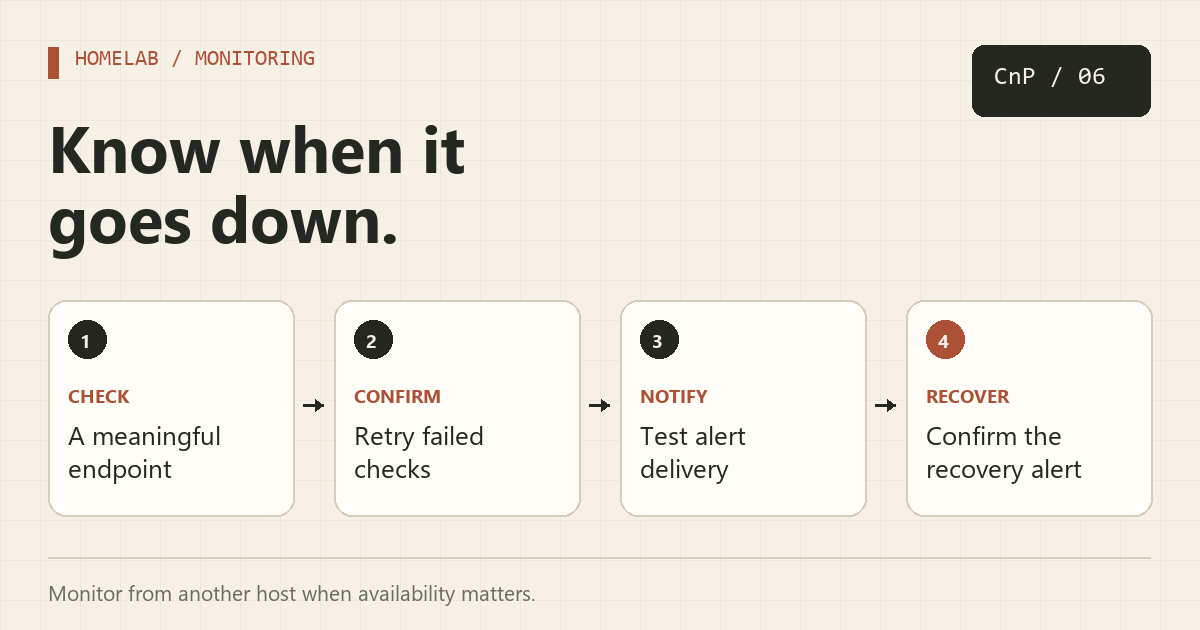
1. Create the Compose project
You need Docker Engine, the Compose plugin, local persistent storage, and outbound access to your chosen notification provider.
mkdir -p ~/uptime-kuma
cd ~/uptime-kuma
Save this as compose.yaml:
services:
  uptime-kuma:
    image: louislam/uptime-kuma:2
    restart: unless-stopped
    ports:
      - "127.0.0.1:3001:3001"
    volumes:
      - kuma-data:/app/data
    logging:
      driver: local
      options:
        max-size: "10m"
        max-file: "3"

volumes:
  kuma-data:
docker compose config --quiet
docker compose up -d
docker compose ps
docker compose logs --tail 50 uptime-kuma
The /app/data mount preserves monitors, settings, and other application data when the container is replaced. Use a local disk or Docker local volume; the project's documentation does not support NFS for this data directory. The logging section bounds Docker-managed container logs.
The tag :2 tracks releases in the current major version. Pin a specific approved release or digest if you need identical deployments. This is a new-install example; an existing version 1 instance needs the official upgrade guidance and a backup before migration.
2. Open the interface securely
On the Docker host, visit http://127.0.0.1:3001. From another computer, forward that local port over SSH:
ssh -L 3001:127.0.0.1:3001 YOUR_USER@YOUR_SERVER
Keep the SSH session open, then visit http://127.0.0.1:3001 on your computer. If that local port is occupied, use -L 13001:127.0.0.1:3001 and browse to port 13001.
Create the administrator account with a strong, unique password. For regular remote browser access, use Cloudflare Tunnel with Access or your existing authenticated reverse proxy. A tunnel connector in another container must join Kuma's Docker network and use http://uptime-kuma:3001; it cannot use the host's localhost binding.
3. Add a monitor that measures what matters
Select Add New Monitor. For a website, choose HTTP(s), give it a clear name, enter the URL, and start with a 60-second interval and a small retry count such as two. Check the UI's retry and timeout settings rather than assuming an exact alert delay.
An HTTP 200 response may still be the wrong page. Use an HTTP keyword monitor for a stable expected phrase, or monitor a dedicated health endpoint that checks the application's critical dependencies. A TCP monitor proves a port is reachable; it does not prove a web application or database is healthy.
Container networking matters: inside Uptime Kuma, localhost refers to the Kuma container. To monitor another Compose service, join its network and use its service name, such as http://app:8080/health. To monitor a LAN device, use an address the container can route to. Do not assume host.docker.internal exists on every Linux installation.
For an Access-protected app, an unauthenticated request may reach a login page rather than the service. Monitor the private origin for internal health, or configure an approved Access service token and the required headers for an end-to-end check. Keep those tokens private and do not weaken the Access policy to make a monitor turn green.
4. Connect and test a notification provider
Open notification settings and add a provider supported by your instance, such as Telegram, Discord, Gotify, or SMTP email. Supply the provider's required fields, save, and use its Test action.
- Confirm the test message reaches the intended person or channel.
- Attach that notification to your monitor; merely creating a provider may not enable it on existing monitors.
- Use a spare test service, then stop it or point a temporary monitor at a deliberately unavailable endpoint.
- Wait for the monitor to pass its retry threshold and verify the outage notification.
- Restore the endpoint and verify the recovery notification too.
A successful provider test checks delivery settings. The outage drill also checks monitor assignment, retries, and state transitions. Avoid using a critical production service for the first drill.
5. Back up before updating
The actual volume name will usually include the Compose project prefix. Find it with:
docker inspect "$(docker compose ps -q uptime-kuma)" --format '{{json .Mounts}}'
docker compose stop uptime-kuma
With Kuma stopped, back up its data volume using the volume backup and restore procedure, then start the service again. Protect the archive because it can contain notification credentials and monitor configuration. A stopped backup is especially useful for avoiding a partial copy of the database.
After reviewing the release and upgrade notes and securing a backup, update the image:
docker compose pull uptime-kuma
docker compose up -d uptime-kuma
docker compose logs --tail 100 uptime-kuma
Check the UI, monitor state, and notification delivery afterward. If a database migration occurred, rolling back only the container image may not work; keep a compatible pre-upgrade data backup.
Make the monitor independent
If Kuma runs on the same server as everything it checks, a host failure can stop both the applications and the alerting process. For critical services, run an additional monitor elsewhere. Public status pages should expose only intended services, without private URLs or infrastructure details. They provide communication, while the monitoring process and notifications provide detection.
Official references
About Copy And Paste
Just a curious soul dabbling in the world of IT. Exploring coding, sysadmin tricks, and tech automation — because who doesn’t love copying and pasting clean code that just works?
More in Software Install Tutorials
RTSP Stream Stuck? Add a Video Watchdog for go2RTC
Check that your go2RTC stream actually decodes a video frame, then recover after repeated failures with a restart cooldown.
Reach Your Homelab with Cloudflare Tunnel and Protect It with Access
Connect a private Docker service to a public HTTPS hostname without router port forwarding, then require an approved identity through Cloudflare Access.