Automated Docker Backups: Save Your Data, Then Prove You Can Restore It
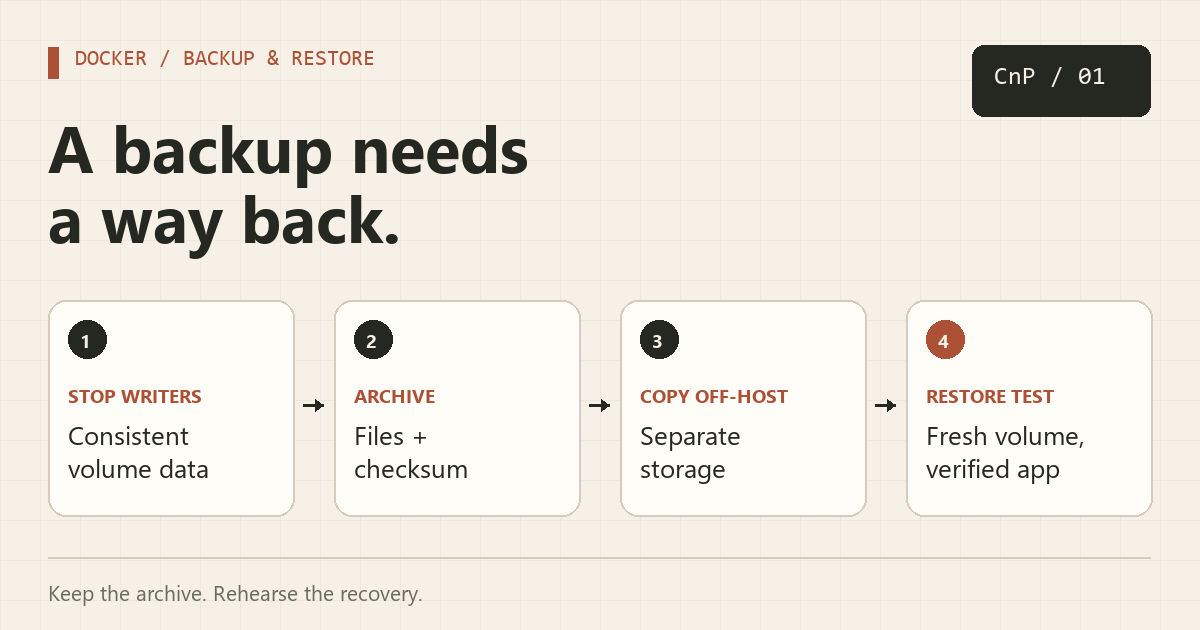
Recreating a container is easy. Recreating the files inside its volume is the part that hurts. A useful backup routine needs three things: a consistent archive, a copy outside the Docker host, and a restore procedure you have actually rehearsed.
This guide backs up one named volume used by one application container on a Linux Docker Engine host. It briefly stops the writer, archives the data, and starts the app again. If several containers write to the same volume, stop every writer or use the application's supported backup mechanism instead.
1. Identify the data you need
You need Bash, Docker, GNU coreutils, flock from util-linux, and enough space for the archive. Run the job as an account allowed to control Docker. Docker access gives extensive control over the host, so treat that account accordingly.
Inspect the container before changing the example names:
docker inspect my-app --format '{{json .Mounts}}'
docker volume inspect my-app-data
docker ps -a --filter volume=my-app-data
df -h /srv/backups
Use the actual volume name from Mounts; Compose often adds a project prefix. Bind mounts need a backup of their host directory. Also save your Compose file, application version, and protected configuration. An archive of one volume does not automatically include other mounts or environment variables.
For databases: prefer a native logical dump or the database's documented physical backup method. Copying a live PostgreSQL, MySQL, or SQLite data directory can capture an inconsistent state. This stopped-container example is suitable only when a clean shutdown makes the application's data safe to copy.
2. Create the backup script
Save this as /usr/local/sbin/backup-my-app. Replace the container and volume names. The lock prevents overlapping runs; the exit trap attempts to restart the app if archiving fails. A file ending in .part is an incomplete backup and should never be used for recovery.
#!/usr/bin/env bash
set -Eeuo pipefail
umask 077

# Replace both names after inspecting your container's mounts.
CONTAINER="my-app"
VOLUME="my-app-data"
BACKUP_DIR="/srv/backups/my-app"
HELPER_IMAGE="alpine:3"

mkdir -p "$BACKUP_DIR"
exec 9>"$BACKUP_DIR/.backup.lock"
flock -n 9 || { echo "Another backup is running" >&2; exit 1; }
docker volume inspect "$VOLUME" >/dev/null
[[ $(docker inspect -f '{{.State.Running}}' "$CONTAINER") == true ]] || {
  echo "Expected a running app; refusing to start a stopped app" >&2
  exit 1
}
# Pull before downtime. Use an approved image digest for reproducibility.
docker pull "$HELPER_IMAGE" >/dev/null
ARCHIVE="${VOLUME}-$(date -u +%Y%m%dT%H%M%SZ).tar.gz"
restart_needed=1
cleanup() {
  rc=$?
  trap - EXIT
  if (( restart_needed )); then
    docker start "$CONTAINER" >/dev/null || rc=1
  fi
  exit "$rc"
}
trap cleanup EXIT
docker stop --time 60 "$CONTAINER" >/dev/null
docker run --rm \
  --mount "type=volume,source=$VOLUME,target=/data,readonly" \
  --mount "type=bind,source=$BACKUP_DIR,target=/backup" \
  -e ARCHIVE="$ARCHIVE" "$HELPER_IMAGE" \
  sh -c 'tar -czpf "/backup/$ARCHIVE.part" -C /data . &&
         tar -tzf "/backup/$ARCHIVE.part" >/dev/null'
docker start "$CONTAINER" >/dev/null
restart_needed=0
mv "$BACKUP_DIR/$ARCHIVE.part" "$BACKUP_DIR/$ARCHIVE"
(cd "$BACKUP_DIR" && sha256sum "$ARCHIVE" > "$ARCHIVE.sha256")
echo "Backup ready: $BACKUP_DIR/$ARCHIVE"
sudo chmod 750 /usr/local/sbin/backup-my-app
sudo /usr/local/sbin/backup-my-app
docker ps --filter name=my-app
sudo ls -lh /srv/backups/my-app
Confirm that the app responds after the job. The script restarts the container, but it cannot prove the application's health. Tar preserves ordinary file permissions and numeric ownership; this simple example does not promise preservation of special ACLs, extended attributes, or every storage driver's metadata.
3. Schedule it and keep another copy
After a successful manual run, use sudo crontab -e to add a nightly job. Adjust the PATH if Docker is installed elsewhere:
PATH=/usr/local/sbin:/usr/local/bin:/usr/sbin:/usr/bin:/sbin:/bin
15 3 * * * /usr/local/sbin/backup-my-app >> /var/log/backup-my-app.log 2>&1
Monitor the log and backup age, and rotate the log. Copy completed archives and their checksum files to another machine or encrypted backup destination. Keeping everything on the same SSD protects against accidental changes, but not a failed drive. Keep several recovery points and test retention rules before enabling automatic deletion.
4. Restore into a fresh volume
Do this on a test host or with an isolated test instance. Replace the archive filename and run the commands one step at a time. A checksum mismatch is a reason to stop, not to force extraction.
set -Eeuo pipefail
# Select the archive you actually created; do not copy this date literally.
BACKUP_DIR="/srv/backups/my-app"
ARCHIVE="my-app-data-REPLACE_WITH_TIMESTAMP.tar.gz"
RESTORE_VOLUME="my-app-data-restore-test"

cd "$BACKUP_DIR"
sha256sum -c "$ARCHIVE.sha256"
# Stop here if the checksum fails.
if docker volume inspect "$RESTORE_VOLUME" >/dev/null 2>&1; then
  echo "Choose a fresh restore volume; this one already exists" >&2
  exit 1
fi
docker volume create "$RESTORE_VOLUME"
docker run --rm \
  --mount "type=volume,source=$RESTORE_VOLUME,target=/restore,volume-nocopy" \
  --mount "type=bind,source=$BACKUP_DIR,target=/backup,readonly" \
  -e ARCHIVE="$ARCHIVE" alpine:3 \
  sh -c 'tar -xzpf "/backup/$ARCHIVE" -C /restore'
docker run --rm \
  --mount "type=volume,source=$RESTORE_VOLUME,target=/data,readonly" \
  alpine:3 sh -c 'ls -lan /data'
Start a separate instance of your application using the restored volume and the same application version. Give it different ports and a separate project name. Disable outgoing jobs, email, and integrations that could affect production. Check a known file, log in, and verify representative records. Listing files proves extraction worked; it does not prove the application can use them.
When something goes wrong
- Empty archive: check the real volume name and whether the app uses a bind mount instead.
- Permission denied after restore: compare numeric UID/GID values with the original container. Do not recursively change ownership until you know what the app expects.
- Container remains down: run
docker start my-app, inspect its logs, and investigate the failed backup before re-enabling the schedule. - Disk full: preserve the most recent verified backup and move older archives to another destination before retrying.
New to Docker? Start with our Docker and Portainer installation guide. For storage troubleshooting, see the Docker cleanup guide.
Official references
About Copy And Paste
Just a curious soul dabbling in the world of IT. Exploring coding, sysadmin tricks, and tech automation — because who doesn’t love copying and pasting clean code that just works?
More in Coding
How to Clone Large Google Drive Folders: A Simple Script Solution
The Challenge I recently encountered a common problem: needing to download a large Google Drive folder (around 30 gigabytes!) containing numerous files and subfolders. Manually selecting and downloading each file would take forever. The “Download All” option wasn’t much better, as Google’s zipping process for such a large volume of data also consumes a significant …