Set Up a New Windows PC with WinGet: A Repeatable App Checklist
A new Windows installation usually means repeating the same downloads: an archive tool, Git, a code editor, and a few utilities. WinGet can turn that routine into a short, reviewable package list.
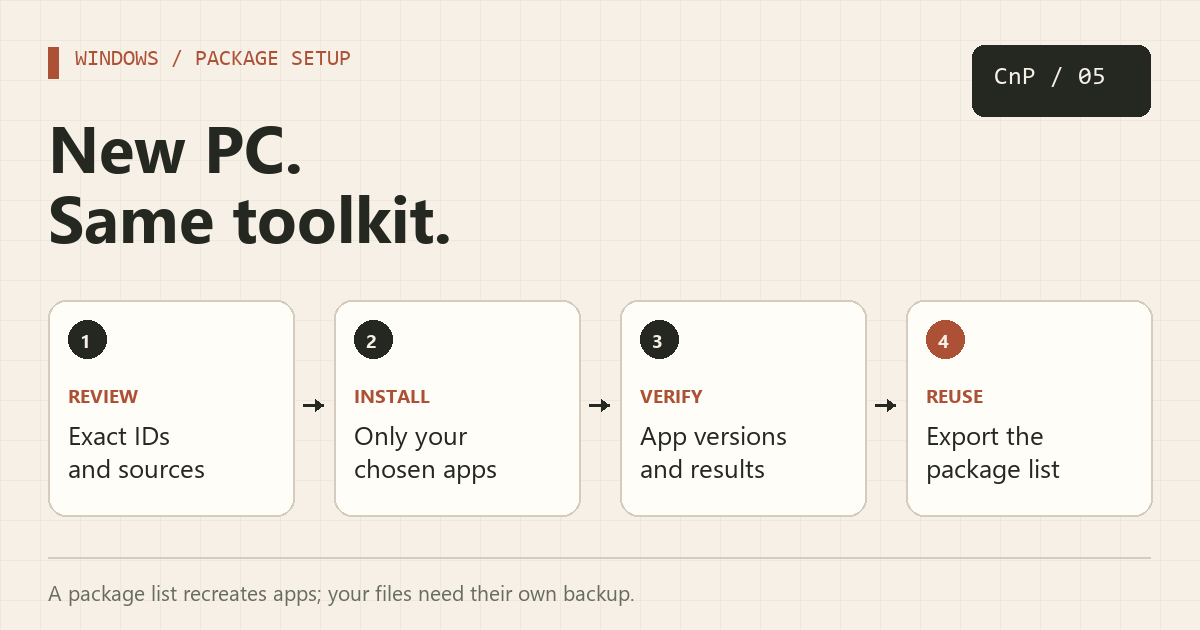
The example below installs 7-Zip, Git, Visual Studio Code, and PowerToys. Edit the list to suit your machine. The commands install applications; they do not transfer your browser profile, SSH keys, editor settings, or license activation.
1. Check WinGet and its source
Open PowerShell on a supported Windows 10 or Windows 11 system and run:
winget --version
winget --info
winget source list
winget source update
WinGet is distributed with Microsoft's App Installer. If it is missing, install or update App Installer using Microsoft's documented installation options, then open a new terminal. Organization-managed devices may restrict package sources or installation privileges.
Start in a normal user terminal. Some packages or machine-wide installers will request administrator approval. A silent installer can still trigger a Windows UAC prompt; do not assume silent mode makes elevation unnecessary.
2. Review exact package IDs
Search results can contain similar names. Inspect the package and installer information before installing:
winget search --id Git.Git --exact --source winget
winget show --id Git.Git --exact --source winget
winget show --id 7zip.7zip --exact --source winget
winget show --id Microsoft.VisualStudioCode --exact --source winget
winget show --id Microsoft.PowerToys --exact --source winget
--id selects the identifier field, --exact avoids substring matches, and --source winget avoids ambiguity with other repositories. Check the publisher, installer URL, architecture, and license information. Package availability and supported scope can change over time.
3. Install once, then scale to a list
For the first package, use the interactive prompts so you can see what WinGet is doing:
winget install --id Git.Git --exact --source winget --no-upgrade
--no-upgrade keeps an already installed version instead of using this setup step as an implicit upgrade. If you specifically need a user-scoped installation and the package supports it, add --scope user. Do not apply that switch blindly to every package: some installers only support machine scope.
After reviewing the remaining apps and their terms, save the following as setup-apps.ps1. The agreement switches accept source and package agreements on your behalf, so remove any package whose terms you have not accepted.
# Run in PowerShell after reviewing the package list and license terms.
$packages = @(
    '7zip.7zip',
    'Git.Git',
    'Microsoft.VisualStudioCode',
    'Microsoft.PowerToys'
)
$results = foreach ($package in $packages) {
    & winget install --id $package --exact --source winget `
        --no-upgrade --silent --disable-interactivity `
        --accept-package-agreements --accept-source-agreements
    $resultCode = $LASTEXITCODE
    [pscustomobject]@{
        Package = $package
        ExitCode = $resultCode
        Result = if ($resultCode -eq 0) { 'Success' } else { 'Review output/logs' }
    }
}
$results | Format-Table -AutoSize
$results | Export-Csv -LiteralPath ./winget-results.csv -NoTypeInformation
The script installs packages sequentially and writes a result table and CSV. Run it with .\setup-apps.ps1 from its directory. If your execution policy blocks scripts, follow your organization's policy or run the reviewed commands directly in PowerShell rather than globally weakening that policy.
We deliberately omit --allow-reboot. If an installer reports that a reboot is required, save your work and schedule it yourself. A nonzero result needs review: it can describe an installer failure, an already-satisfied condition, or a reboot-related outcome. Do not label every nonzero result as an identical failure.
4. Verify the installed tools
winget list --id Git.Git --exact
winget list --id 7zip.7zip --exact
winget list --id Microsoft.VisualStudioCode --exact
winget list --id Microsoft.PowerToys --exact
Open a new terminal so it inherits updated PATH entries, then run git --version and code --version. Launch PowerToys and confirm the utilities you want are enabled. An installer exit code is useful evidence, but checking the application itself catches incomplete setup.
5. Export a list for your next machine
winget export --output .pps.json
# Review apps.json and remove packages you do not want to replicate.
winget import --import-file .pps.json --ignore-versions --no-upgrade
Export attempts to match installed applications to known package sources. Some applications may be skipped or cannot be identified. Review the JSON before copying it to another computer. The file contains package identifiers and source information, not your application data.
--ignore-versions requests currently available versions instead of reproducing exported versions. Omit it if your intention is to request those versions, and be prepared for a version to be unavailable. Avoid --ignore-unavailable when completeness matters: you want to see missing packages.
Common problems
- No applicable installer: inspect the package's architecture, Windows requirements, and supported scope with
winget show. - Agreements or installer UI block automation: retry that package interactively and inspect its license terms.
- A command is missing after installation: reopen the terminal and check the app's PATH options.
- Installation fails: use
winget --logsto open diagnostics, and inspect the installer error before retrying. Do not bypass a hash mismatch.
Once your tools are installed, keep Windows Update and device drivers on a separate checklist. For another Windows shortcut, see how to restart directly into firmware settings.
Official references
About Copy And Paste
Just a curious soul dabbling in the world of IT. Exploring coding, sysadmin tricks, and tech automation — because who doesn’t love copying and pasting clean code that just works?
More in Tricks
Docker Disk Full? Find the Space Hogs and Clean Up Safely
Separate images, build cache, logs, and persistent data before reclaiming Docker storage. Keep the volumes and rollback images you still need.
Splitting a Dual-Lens Camera Feed for a Hikvision DVR
I recently picked up an inexpensive dual-lens Yoosee camera. It works well, but there’s a catch: it doesn’t provide separate video streams for each lens. Instead, it merges both lenses into a single frame, which makes viewing difficult even though the camera can technically be added to a Hikvision DVR. After some research, I found …